
Settings and branding
Your company name and logo, financial year, chart colours, own domain, and having PlexBI build your dashboards.
For: Admins Where: Admin → Settings
Company
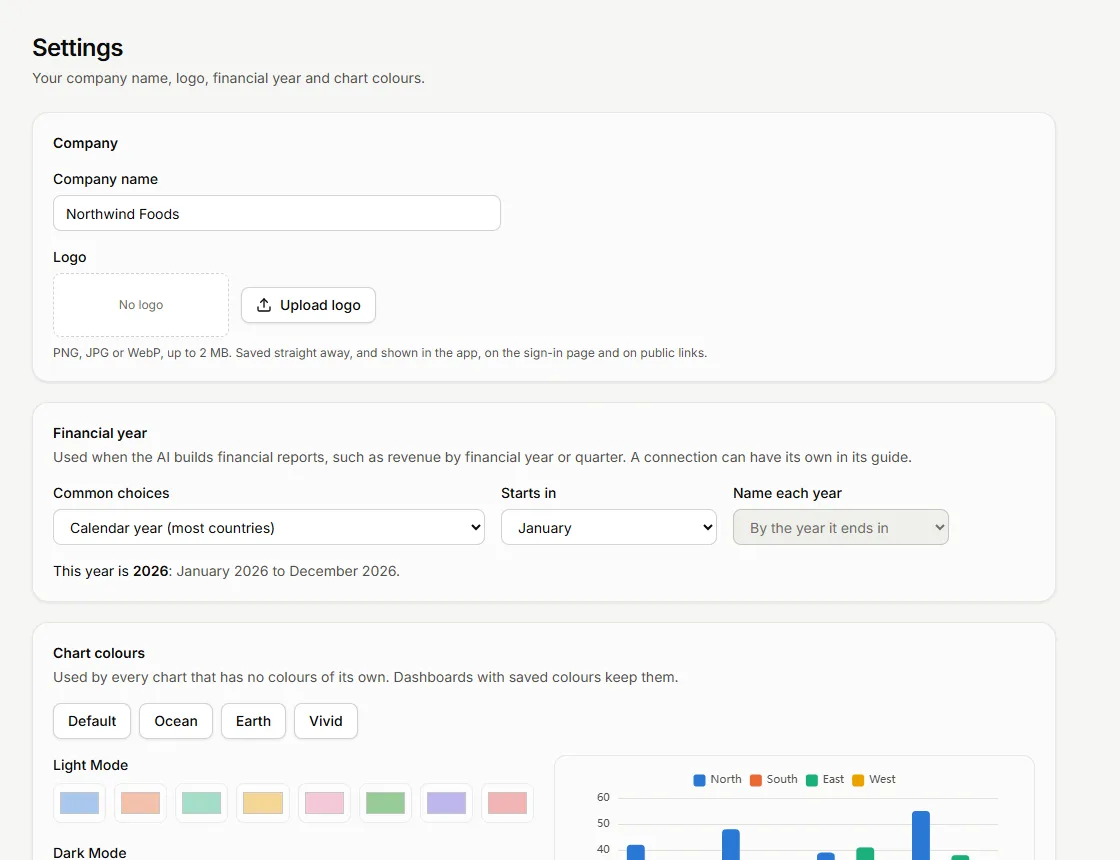
Set the Company name and upload a Logo (PNG, JPG or WebP, up to 2 MB). The logo shows in the app, on the sign-in page and on public links.
Financial year
Choose the month the financial year Starts in, and how to Name each year: by the year it starts in, the year it ends in, or both (2026/27). A connection can have its own financial year in its guide.
Chart colours
Pick one of the Common choices or your own colours. They are used by every chart that has no colours of its own. PlexBI warns when colours are too similar or hard to see. Then Save settings.
Own domain
Use an address of your own, such as reports.yourcompany.com, instead of your PlexBI address. It is included in Pro and Enterprise, and is an add-on on Starter. Type the address under Own domain and choose Add domain. Then add the CNAME record shown where you manage your domain’s DNS (on Cloudflare, set it to “DNS only”). PlexBI checks every 30 seconds until the record is found and the certificate is issued. Then choose Switch to your address: sign-in, emails, share links, embeds and forms all use it, links to the old address open the new one, and everyone signs in once more. Remove domain goes back to your PlexBI address. It has to be a subdomain: a bare domain such as yourcompany.com cannot be used.
Have PlexBI build your dashboards
Our team can build your dashboards for you. Under Have PlexBI build your dashboards, pick Quick start (1 data source, 5 dashboards, alerts and a handover call, in 5 working days) or Full setup (up to 3 data sources, 15 dashboards, schedules, what each person may see, and user roles), and choose Choose Quick start or Choose Full setup. Say What do you want to know from your data?, which data sources, who will use the dashboards, and how to reach you. Then Continue to payment to pay by card, or Send request if your plan includes it or we invoice you. We contact you within 1 working day, and if we cannot deliver you get a full refund. A request you have not paid for can be cancelled with Cancel request. For ongoing help, Dashboard care is a monthly arrangement: contact us.
PlexBI expert
Let someone from PlexBI build your dashboards for you. Under PlexBI expert, type Their PlexBI email (only PlexBI addresses can be invited), choose how long it is For (7, 14 or 30 days) and What they may do: Build dashboards (a developer who can use the AI builder and edit connection guides) or Full setup (an admin, who can also set up users and what each one sees, but cannot make admins or change yours). Choose Send invitation: they get an email with a one-time link to choose their password. While their access lasts they can see your data; the AI still never does. Extend 7 days gives more time, and End access now signs them out at once. When the time is up they are signed out and you get an email. Everything they do is marked PlexBI expert in the audit log.
Experts show on the Users page with the date their access ends. Manage them here, not there.