
Scheduled emails
Email a report now, or every day, week or month, as PDF or Excel.
For: Admins and developers Where: A report → ⋯ → Email
Send now or on a schedule
- Open the report and choose Email from the ⋯ menu.
- Type the addresses (up to 10, separated by commas) and an optional Message, for example
Here are this week’s numbers.A likely typo shows Did you mean …?; choose Use it to fix it. An address whose domain cannot receive email is named, and nothing is sent until it is corrected. - Choose Attach as: Detailed report (PDF) (charts, then every table in full), Dashboard on one page (PDF), or Excel (one sheet per widget).
- Choose Send now, or On a schedule with How often (Every day, Every week on a weekday, Every month on a day) and the time.
- Choose who replies go to under Replies go to.
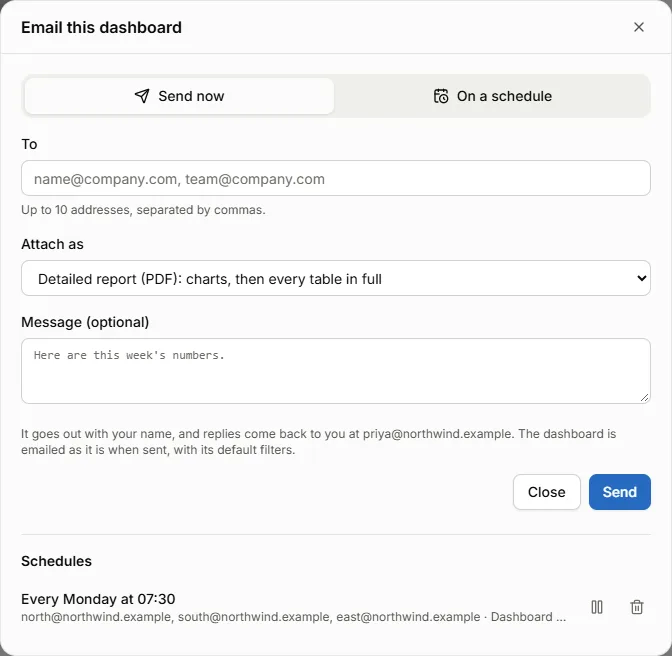
Schedules run in the company’s time zone (shown next to the time). Day 31 sends on the last day of shorter months.
Manage schedules
The Schedules list in the same window shows each one; pause, resume or delete it there. The report is emailed as it is when sent, with its default filters, and every scheduled email has an unsubscribe link. If an address bounces (it does not exist), the schedule shows bounced on …, check the address and skips it; fix the address, then choose Try again. Someone who marks an email as spam is unsubscribed from all of them. Someone who is not a user here gets one email first asking if they want it: until they say yes, the schedule shows Waiting for … to confirm (with Resend) and skips them. An admin can switch this off under Settings; Send now never waits.