
Alerts and triggers
Be told when a number crosses a line, or when rows appear that need action, by email, WhatsApp, Teams, Slack or webhook.
For: Admins and developers Where: A report → Edit → Alerts
Alerts and triggers
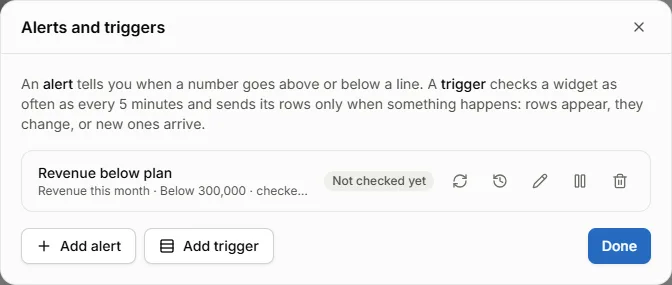
An alert watches a number on a widget and tells you when it crosses a line. A trigger watches the rows of a table widget and sends them when there are any, or when new ones appear.
Add an alert
- Open the report, choose Edit, then Alerts on the blue bar, and Add alert.
- Pick the Widget, the column to watch, and Alert when the value is above or below This value, such as
10000. - Choose how often to Check (every 5 minutes to once a day) and when to Send again while it keeps firing.
- Choose where it goes: Email, WhatsApp, Microsoft Teams, Slack or Webhook.
- Use Send a test to make sure it arrives, then Done.
Add a trigger
- Choose Add trigger and pick a table widget, such as “Stuck orders”.
- Send the rows when: Any rows, or Rows change, with Rows are told apart by a column such as the order number, so only new rows are sent.
- Attach the rows as Excel or the dashboard as PDF if you like.
Watching and history
Each alert shows when it was last checked and whether it fired. Use Check now to run it at once, the history button to see past sends, and pause or delete it from the list.
Example
Northwind sets an alert on Revenue today: below
10000 at 4 p.m., checked once a day, by WhatsApp to Priya. A trigger on Stuck orders emails the warehouse every 15 minutes with any new orders waiting more than two hours.