
Forms to fill
Find the forms you have been given, answer them, see your answers, and review others’ answers.
For: Everyone Where: Analyse → Forms to fill
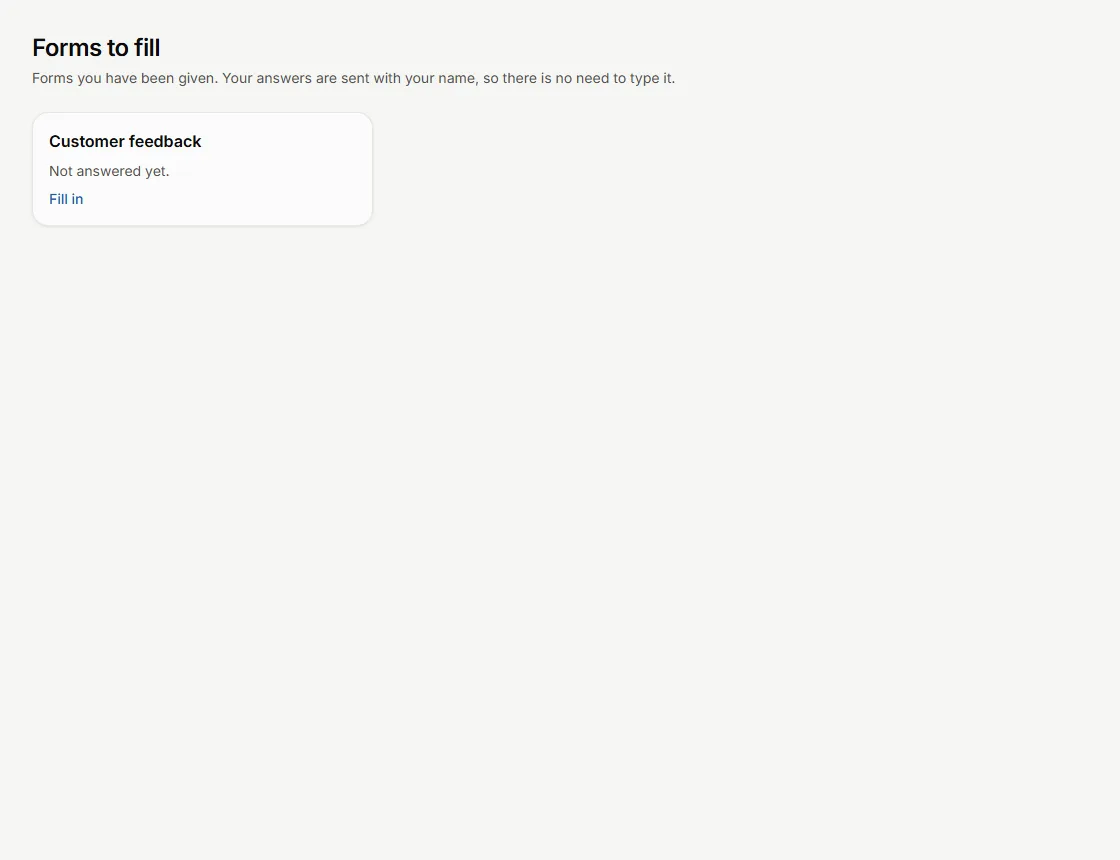
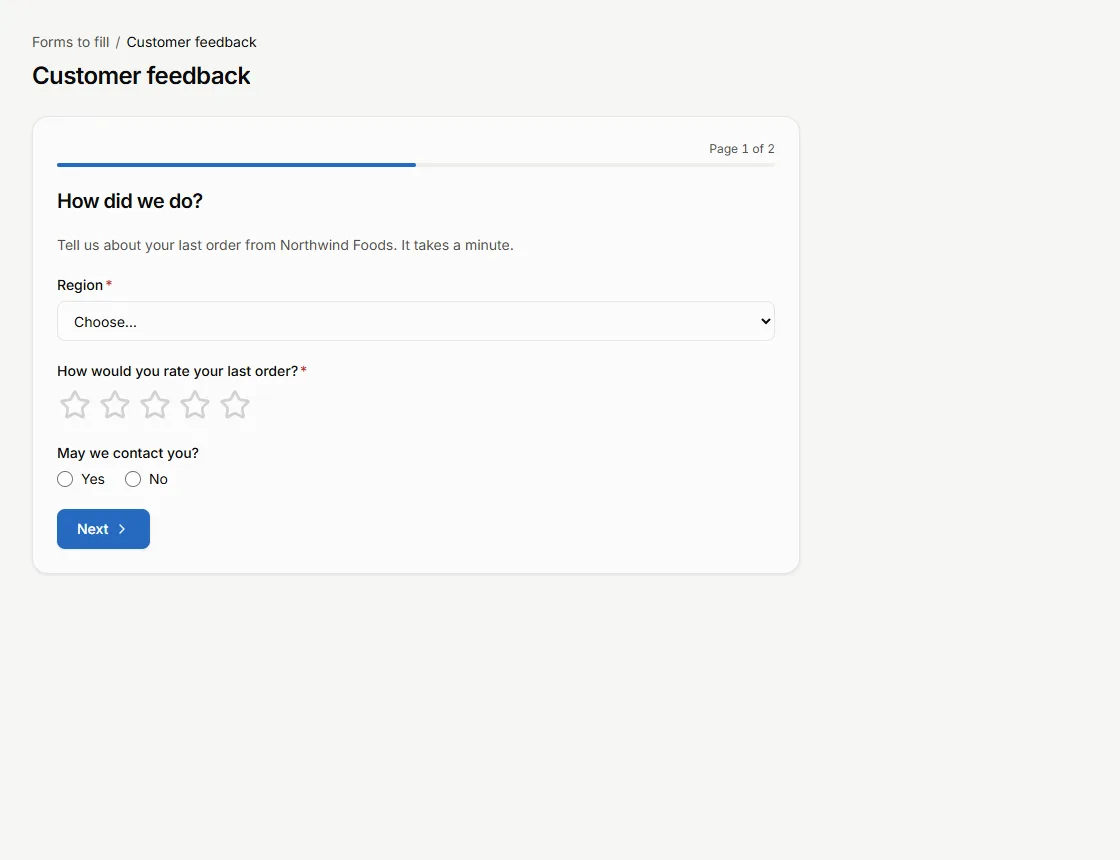
Answer a form
- Go to Forms to fill. Each form says whether you have answered it.
- Open a form, answer the questions, and send it. Your name and email are added from your account, so you do not need to type them.
- Some forms allow only one answer per person; then your answer is shown instead of the form.
Your answers
Open a form you have answered to see Your answers. If the form needs approval, you see whether it was Approved or Rejected, with the reviewer’s comment, and you are emailed the decision.
Review answers
If you are a reviewer, To review lists forms with answers waiting. Open an answer, then approve or reject it with an optional comment, for example why it was rejected.
In the field
The same forms work in the PlexBI mobile app, and their answers go to the same place.
Example
Each Friday, Northwind’s store managers fill in Weekly stock check under Forms to fill. The area manager reviews them under To review and rejects one with the comment
Count the freezer again.