
Forms: publishing and answers
Decide where answers are kept and who can answer, share the form by link, QR code or website, get notified, and review answers.
For: Admins and developers Where: Data → Forms → a form → Settings, Storage, Share and Submissions
Where answers are saved
On the Storage tab, Where answers are saved: PlexBI storage (no database needed, ready for dashboards), An existing table in your database (choose a column for each field), or Do not save (answers are only emailed).
Who can fill it in
On the Settings tab, under Who can fill it in:
- Everyone who signs in: every PlexBI user finds it under Forms to fill, and answers say who sent them.
- Only chosen people: roles or people you pick.
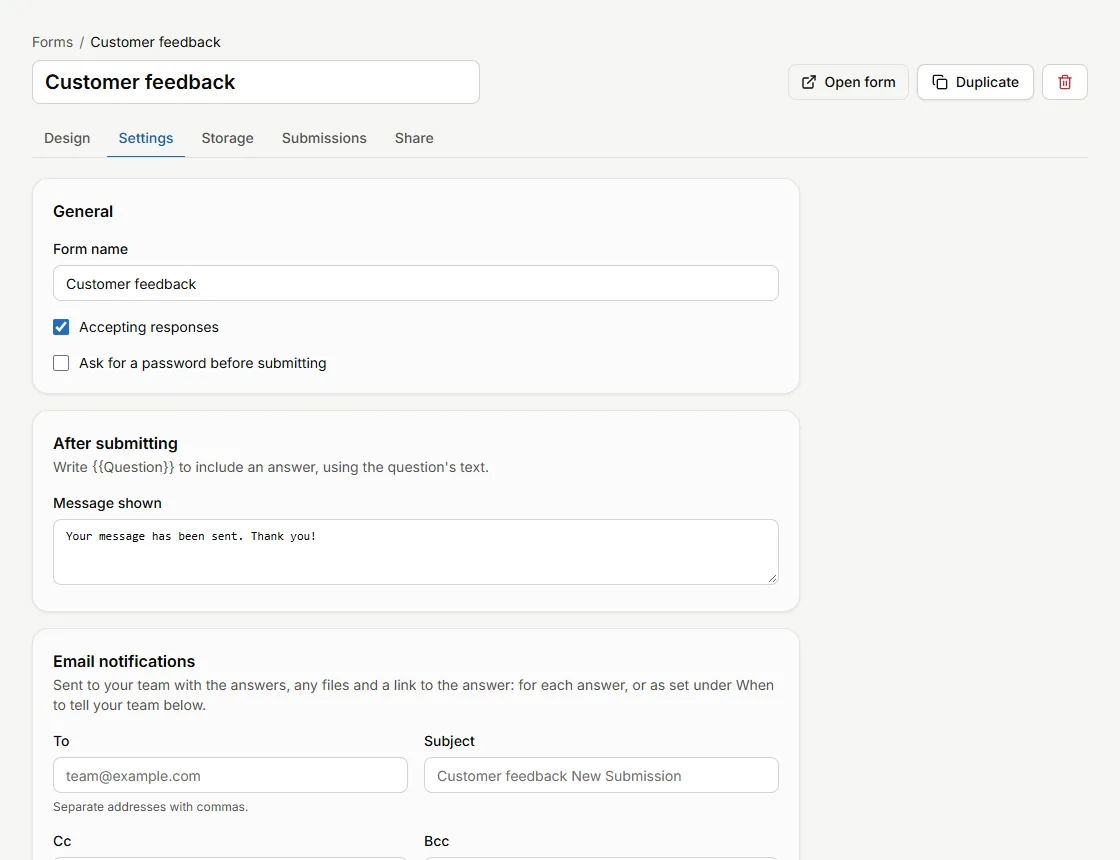
- Anyone with the link: for customers without an account. Add a robot check (Cloudflare Turnstile), and under General you can ask for a password before submitting.
- Limits: one answer per person, Close after this many answers, or Close on a date, with a Message when closed.
Share it
On the Share tab:
- Link: copy the form’s address.
- Link with answers filled in: for example one link per shop with the store already chosen.
- QR code: print it on a poster or receipt; phones open the form when they scan it.
- Embed in a website: paste the code into your site, for example a WordPress “Custom HTML” block. It grows to fit the form.
Tell your team
On the Settings tab, under Email notifications, add addresses to receive each answer with its files and a link to it, and a Receipt for the person who answered. When to tell your team can be every answer, only when conditions match (for example a rating below 3), or a daily summary. A Webhook sends answers to another system.
Approval and the answers
On the Settings tab, switch on Approval to have answers wait until a reviewer approves or rejects them, with a comment. Reviewers find them under Forms to fill → To review. On the Submissions tab, search answers, open one, download it as PDF, or delete it.