Filters and saved views
Let viewers narrow a report by region, product or dates, and save the filters they use often.
For: Everyone Where: A report → Edit → Filters
How filters work
A report’s filters appear above its widgets. Each widget’s query says where the filter applies, using the filter’s Variable. When nothing is chosen, the filter has no effect.
Add a filter (admins and developers)
- Open the report, choose Edit, then Filters on the blue bar, and add a filter in Dashboard filters.
- Choose the Type: Dropdown, Date or Date range.
- Type the Label people see (
Region) and a Variable (REGION). - For a dropdown, set where the options come from, for example the Options query
SELECT DISTINCT region FROM sales. - In each widget’s SQL, put the variable and the column it filters where the condition goes.
SELECT product, SUM(revenue) AS Revenue
FROM sales
WHERE {REGION|region}
  AND {DATES|order_date|Y-m-d}
GROUP BY product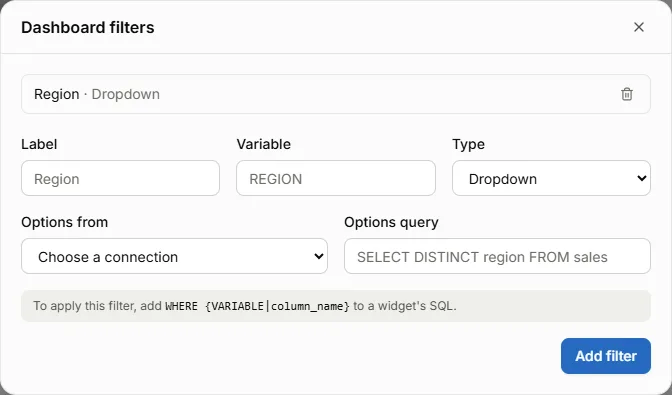
Saved views
Set the filters, then use the saved views menu and Save view with a name such as North, this quarter. Choose it next time to apply all its filters at once. Saving again under the same name updates the view, and a view can be shared with everyone.
Filters set by data access
If an admin limits what someone can see (see Users and access), their filter shows Set by your access and cannot be changed. Their widgets only ever show their rows.
Example
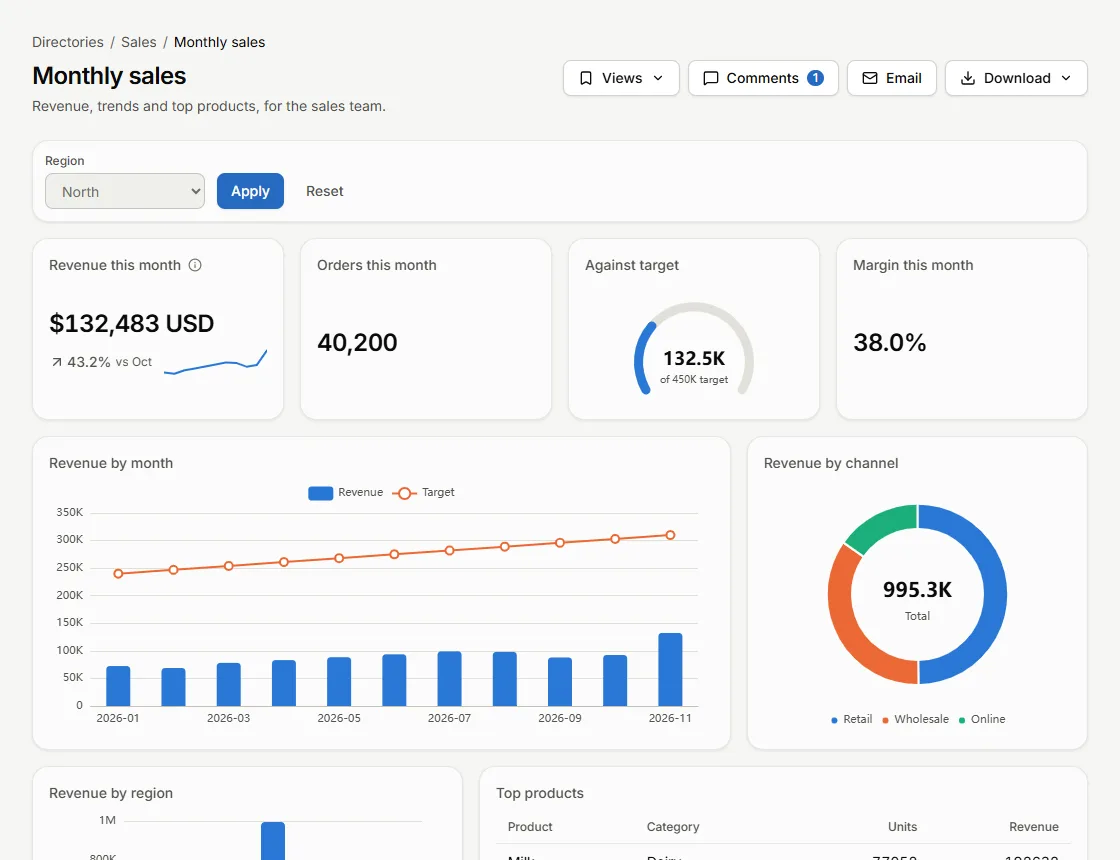
Northwind’s Monthly sales report has a Region dropdown and an Order date date range. Tom, who manages the North, saves the view North, this quarter and opens it every Monday.