
Uploads (spreadsheets)
Upload CSV and Excel files and build reports on them like any database.
For: Admins and developers Where: Data → Uploads
Workspaces
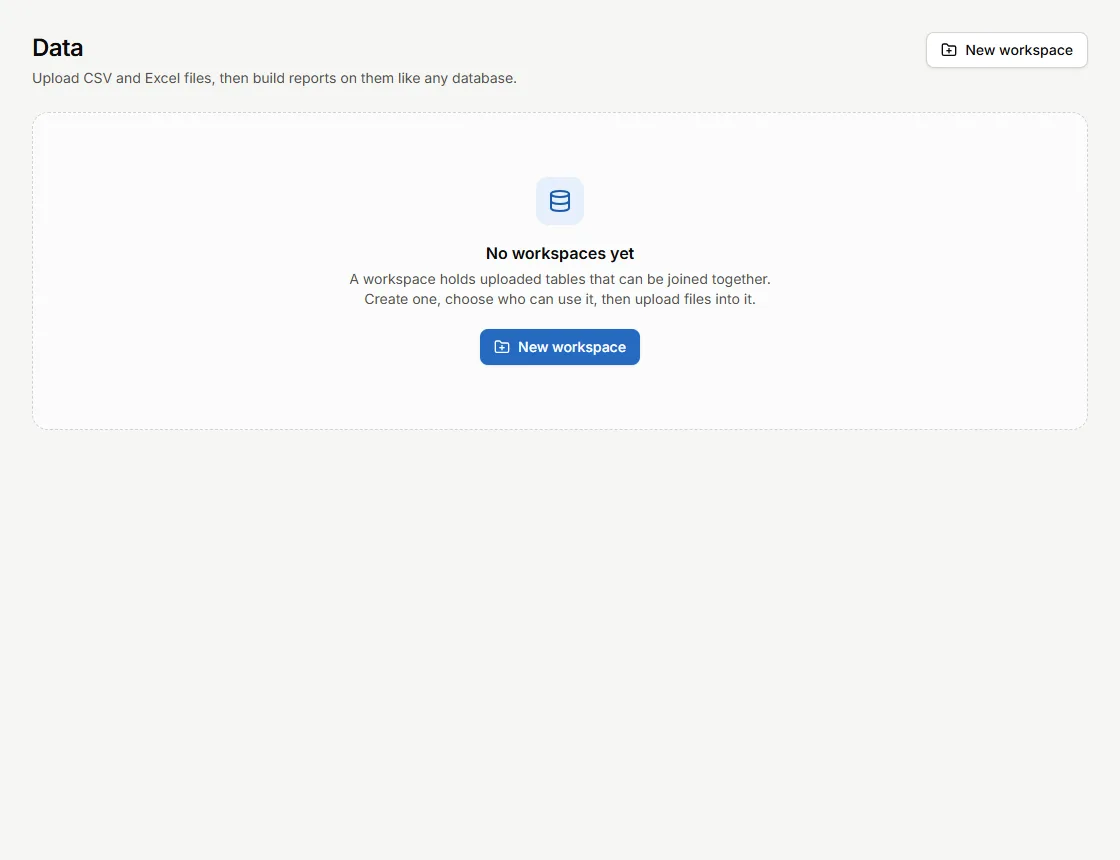
Uploaded files become tables in a workspace. An admin creates it with New workspace: either PlexBI storage (nothing to set up) or Your own database (a schema PlexBI may create tables in). Tables in a workspace can be joined with each other, and each workspace appears as a connection named “Uploads: …”.
Upload a file
- Choose Upload file and drop a CSV, Excel (.xlsx) or OpenDocument (.ods) file, up to 50 MB.
- Pick the Workspace, and the Sheet for a workbook.
- Under Import as, choose A new table (and its Table name), Add rows to a table, or Replace a table’s rows.
- Check each column’s name and type (Text, Whole number, Number, Date, Date and time, Yes / no) and, for dates, the format.
- Import. Progress shows while it runs; you can Hide it and keep working.
Keep it up to date
In the table list, Add rows appends another file, and Replace uploads a new version of the table. Recent imports shows what came in and any problems.
Example
Northwind’s monthly targets live in a spreadsheet. Priya uploads
targets.xlsx as a new table targets, then builds a Combo chart of revenue (from the order database) against target. Next month she uses Replace with the updated file.